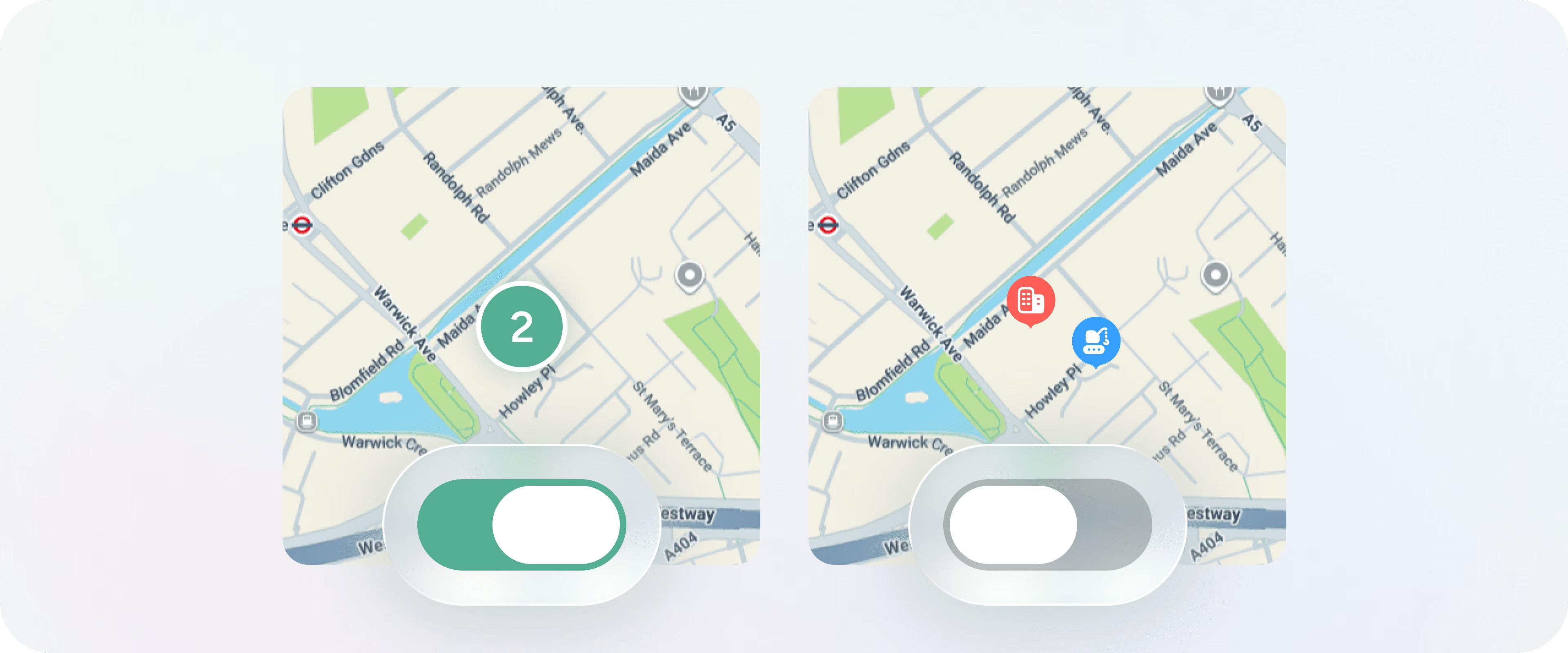
When you have lots of pins on your map, Pin Drop groups nearby pins together into clusters to keep the map fast and readable. A cluster appears as a circle with a number inside, showing how many pins are in that area.
This was introduced to keep the map performant when you have a large number of pins. An update is in the works that will improve how clustering behaves at different zoom levels.
If you prefer to see every pin individually at all zoom levels:
Your pins will now display individually across the map. You can turn clustering back on at any time via the same settings.
Turning clustering off may slow the map down if you have a very large number of pins. If you notice any sluggishness, turning clustering back on should help.
Support
Talk to the team on our US & Canada toll-free line or our UK number.
Calls are answered by our AI assistants, Nora (US & Canada) and Ellie (UK) and recorded so the team has the details. You can also email us on hello@pindropapp.com. We aim to get back to you within one working day.
Start here
start-here
Get the apps
get-the-apps
Drop your first pin
drop-your-first-pin
Import your places
import-your-places
Organise with tags
organise-with-tags
Share with your team
accounts-access



