Pin Drop is better shared. Invite the people you work with so everyone is looking at the same map, then control who can see and change what.
Open sharing from your map, add people by their work email address and send the invite. They join as soon as they accept. Each member takes a seat on your plan.
Pin Drop signs people in with an emailed link rather than a password. If someone cannot sign in it is nearly always one of two things: they used a different email from the one you invited, or the sign-in email is sitting in spam or corporate quarantine.
The teams that land Pin Drop smoothly all do the same thing: they get the workspace ready before the team arrives. Aim to have three things in place first.
Rather than inviting everyone at once, start with a small pioneer group of your heaviest users. Let them work for a week or two: they will surface setup problems while the audience is small, and they become your internal champions when the wider team arrives. Then invite everyone else, with a short heads-up from you so the invitation email does not sit in a spam folder.
Keep the launch session to about 30 minutes: five on why (one map, one source of truth), twenty of live demo, five for questions.
Watch the first week: who has signed in, who has not and which questions repeat. Fix data problems quickly, a wrong address or a stale status erodes trust in the whole map. A week in, round up the questions you’ve collected and answer them once, to everyone.
Every Pin Drop user begins with an individual account linked to a single email address. This account lets you sign in, create and manage your own map and use Pin Drop across mobile and web. Individual accounts come in two forms, Free and Solo.
Free accounts organise places on a personal map with no limit on the number of pins or tags. You can save locations, organise them with tags and use both the app and the web. Some advanced features are visible in the interface but locked until you move to a paid plan. Free accounts cannot create or join team workspaces.
Solo unlocks the professional features for individuals using Pin Drop for work: tasks, notes, visits and routes, so real-world activity lives on the map. Solo is still an individual account, so it does not include shared workspaces or pipelines.
Because accounts are tied to one email address, anyone who wants to keep personal data separate when joining a team can keep their individual account and join the workspace with another.
A team workspace lets several people collaborate inside one shared map, where locations, tasks and everything else are visible to the whole team. Data is collaborative by default: pins, tags, routes, territories, tasks and notes can be created and edited by members according to the permissions they are given. Administrators control membership and workspace settings.
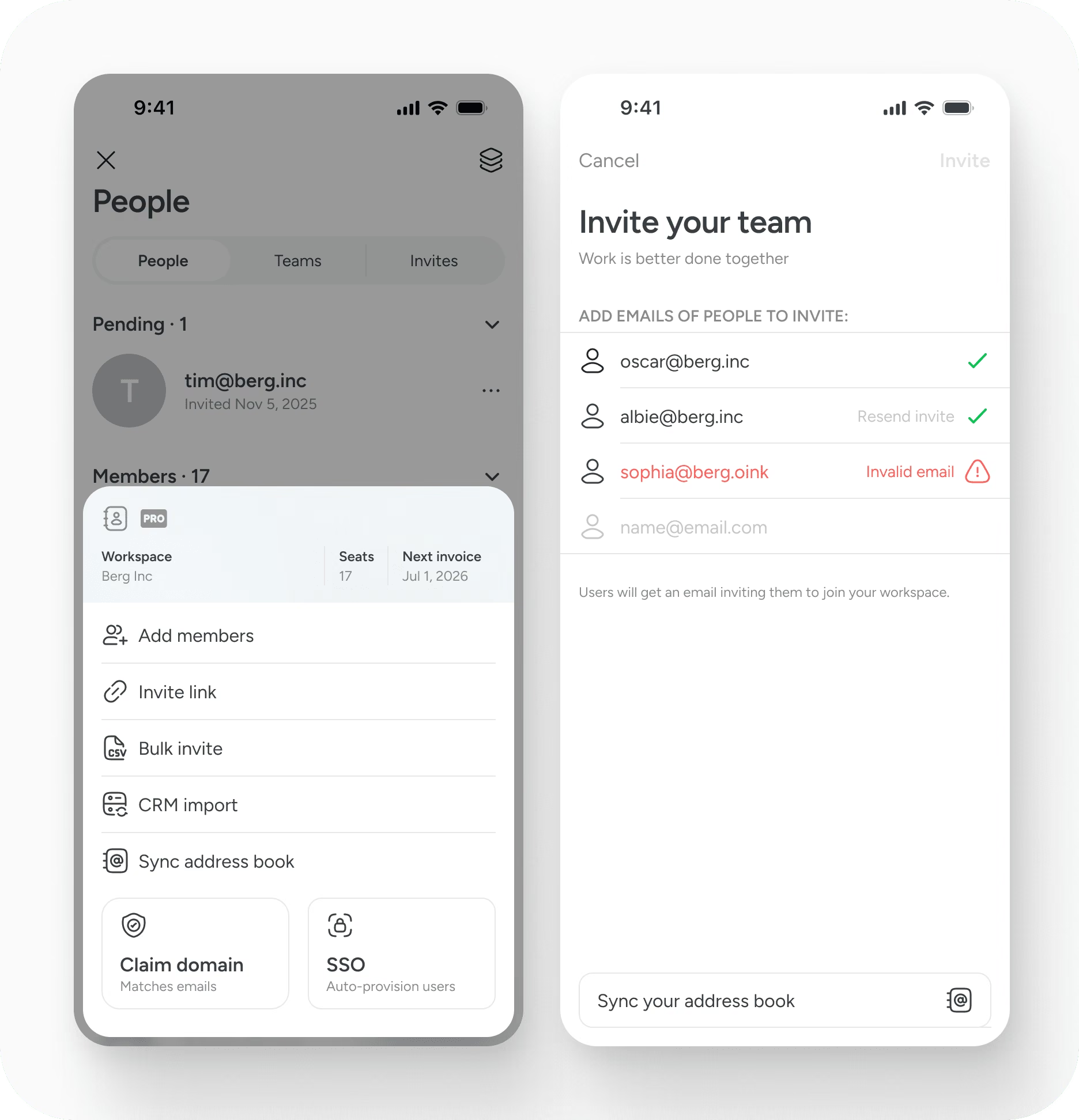
There are two primary roles inside a workspace, administrators and members.
Administrators manage the structure and access of the workspace. They invite and remove people, manage the payment method, assign roles and set permissions. They can also delete the workspace.
Members work inside it. Depending on what administrators allow, they can create, edit or delete pins, tags, territories, routes, tasks, pipelines, projects, notes, visits and comments. Most workspaces run with open collaboration, so members can work on data other people created, but administrators can restrict that where they need to. More granular controls are in development. There is more detail in sharing and permissions.
If someone leaves a workspace or is removed, the data stays. Pins, tasks, notes and everything else they created remain part of the shared map so the team is not disrupted. Attribution can be lost, though: the system may replace the identity of a removed user with an unknown account, so the original creator of an object may no longer be visible. Rejoining sometimes restores it.
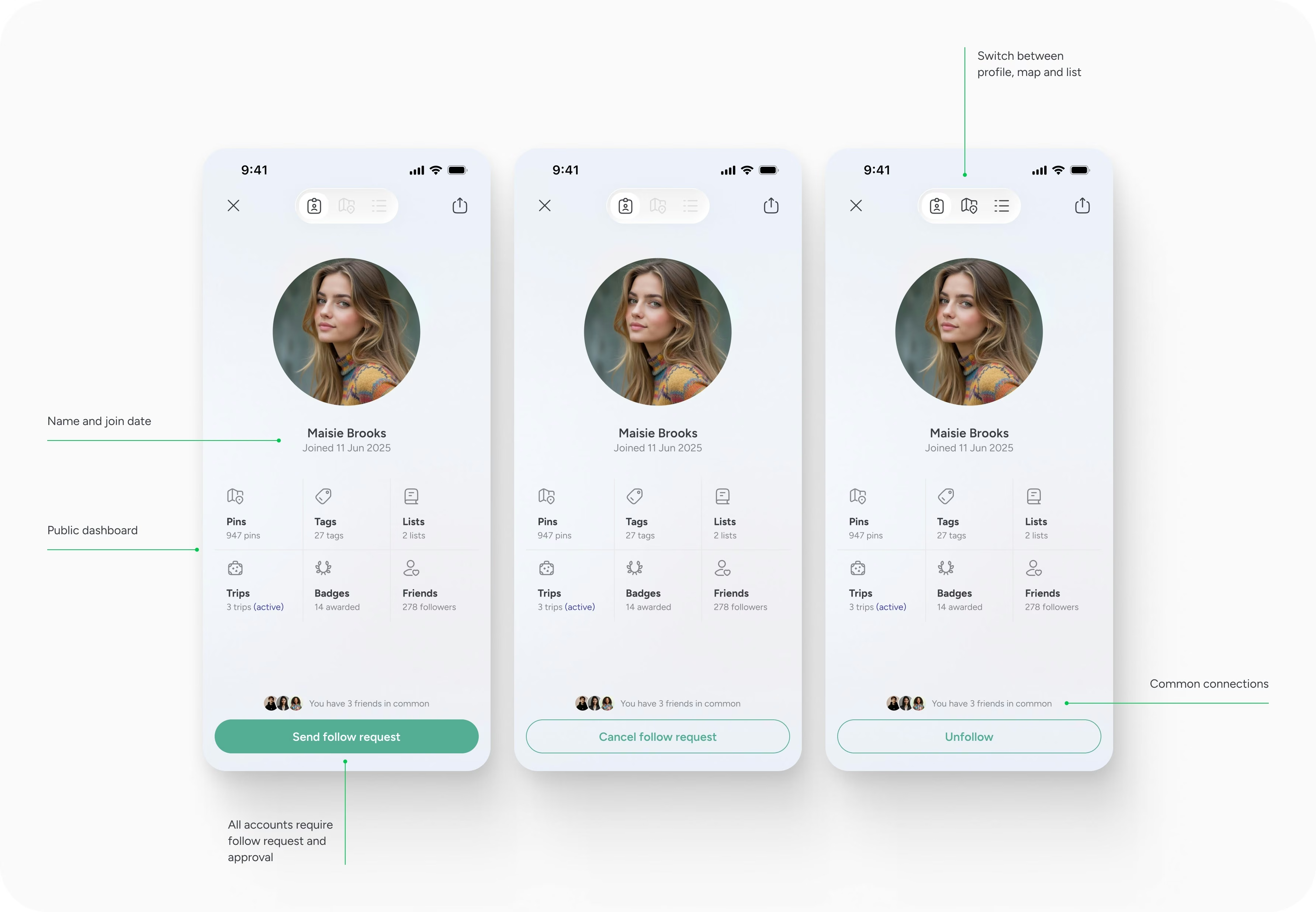
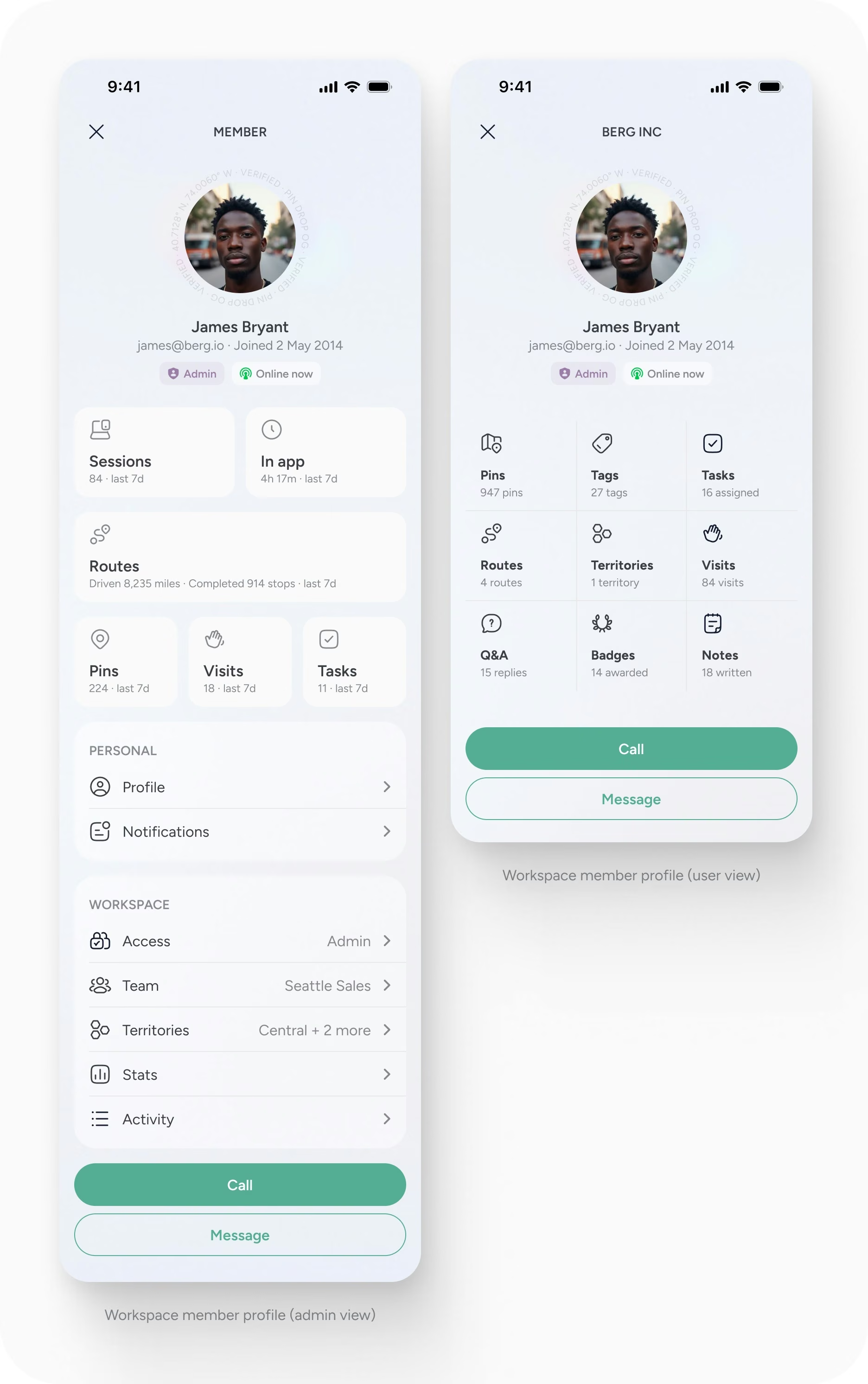
Each user has a profile carrying their name and email address, and it can show activity such as pins created, tasks assigned, visits completed or routes travelled. That gives a team a sense of how people are using the workspace. Anyone can edit their own profile.
Signing in to the app is done with a magic link sent to your email address, and sometimes an extra verification code. Signing in to the web works through the app: the site shows a QR code, you scan it with your phone, and the session is tied to a verified device and account. The full steps are in app on web.
We will show you how to shape Pin Drop around how your team actually works, talk through data management and answer anything outstanding. Request a demo, or get in touch if you would like help with imports, tag design or a launch session.
Support
Talk to the team on our US & Canada toll-free line or our UK number.
Calls are answered by our AI assistants, Nora (US & Canada) and Ellie (UK) and recorded so the team has the details. You can also email us on hello@pindropapp.com. We aim to get back to you within one working day.
Start here
start-here
Get the apps
get-the-apps
Drop your first pin
drop-your-first-pin
Import your places
import-your-places
Organise with tags
organise-with-tags
Share with your team
accounts-access



