Pin Drop is designed to help you organise places and the information connected to them. As your map grows, you may want to bring locations in from other tools or export the information stored in your map for analysis or backup.
Pin Drop includes simple tools for importing and exporting data so that the information connected to your map remains flexible and portable. Importing allows you to bring existing places into Pin Drop from other mapping tools or structured files. Exporting allows you to retrieve the information stored in your map so it can be used elsewhere.
These tools ensure that the data you create inside Pin Drop can always be moved, analysed or reused when needed.
Importing is the fastest way to populate your map when you already have locations saved elsewhere. Instead of recreating each place manually, you can upload a file or import from another mapping service and convert those locations into pins automatically.
Pin Drop supports importing from Google My Maps, Mapstr, a CRM export such as a Salesforce report saved as CSV and structured files such as CSV or Excel spreadsheets. These formats allow addresses, place names and other location information to be converted into pins that appear on your map.
Anything that produces a CSV with a name and an address will work, which covers most CRM and spreadsheet exports. Moving across from Salesforce Maps after the August 2026 retirement is covered step by step in Moving from Salesforce Maps.
During the import process, Pin Drop reads each row in the file and converts it into a pin on the map. Any additional information included in the file can also be attached to the pin depending on how the columns are mapped.
Importing is particularly useful when moving from spreadsheets or other mapping tools. Customer lists, site locations, travel plans or research datasets can be visualised quickly once imported into Pin Drop.
When importing from CSV or Excel files, Pin Drop will attempt to automatically detect how the columns in your file correspond to fields used by the platform. In many cases common column names can be recognised automatically.
If the system cannot determine the mapping, you will be asked to confirm how each column should be interpreted. This allows you to decide which column represents the pin name, which contains location information and which should be attached as additional data such as notes or tags.
Two fields are required for an import to work successfully. Each row must contain a name for the place and a full location reference that allows Pin Drop to determine where the pin should be placed on the map. The location information is used for reverse geocoding so the system can accurately position each pin.
Once the columns have been mapped, the system processes the file and creates the corresponding pins.
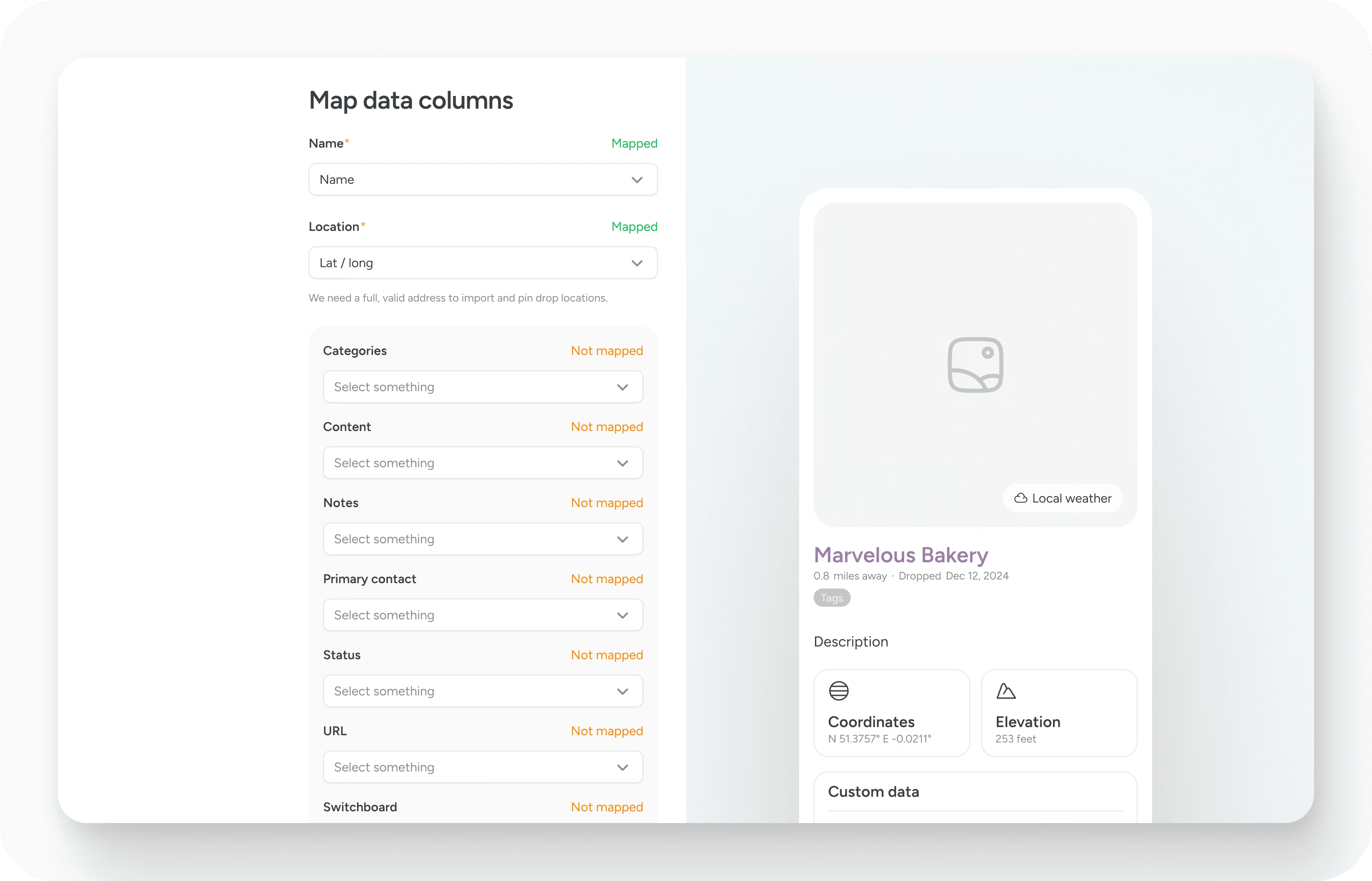
Pin Drop does not enforce strict limits on import size, but larger files naturally take longer to process. Each location must be geocoded and placed on the map before the import can complete.
In most cases imports will complete without issue. However, very large datasets may occasionally fail if too much data is processed at once. If you encounter problems importing a particularly large file, the team can help you complete the process.
Exporting allows you to retrieve the information stored in your map and use it in other tools. This can be useful if you want to analyse locations in a spreadsheet, move data to another system or maintain your own backups.
Pin Drop currently exports data as CSV files. This format can be opened in spreadsheet applications such as Excel or used in other data analysis tools.
Users can export all of the data they have created in Pin Drop. The export includes the information associated with pins and other data you have entered yourself. Some system-generated information may not appear in the export, and automatically derived data such as coordinates may not always be included depending on how the original location was stored.
Even so, the exported file contains the core information you created, allowing you to reuse or analyse your location data outside the platform.
Pin Drop is designed to ensure that the data you create remains accessible to you. Import tools allow you to bring existing location data into the platform, while export tools allow you to retrieve that information again if needed.
This flexibility ensures that your map can evolve over time without locking your information into a single system.
Account management, access control and data deletion are handled separately from the import and export tools described above.
Support
Talk to the team on our US & Canada toll-free line or our UK number.
Calls are answered by our AI assistants, Nora (US & Canada) and Ellie (UK) and recorded so the team has the details. You can also email us on hello@pindropapp.com. We aim to get back to you within one working day.
Start here
start-here
Get the apps
get-the-apps
Drop your first pin
drop-your-first-pin
Import your places
import-your-places
Organise with tags
organise-with-tags
Share with your team
accounts-access



