Pin Drop is built around a simple idea. The world is easier to understand when places are organised properly. A pin is the starting point for that.
A pin marks a specific location on the map. It might be a café you discovered, a customer site you visited, a place you want to return to or a memory you want to keep. Each pin becomes a structured record that you can organise, expand and revisit later.
Once a pin exists, you can add notes, attach photos, group it with other places using tags and build a map that reflects the places that matter to you. There's also a more detailed guide on getting started here.
Pins represent individual locations. They mark the exact places you want to remember, organise or return to.
Tags allow you to group pins together so they become easier to navigate later. You'll find tags within 'Organise'. A tag might represent a category, a theme or a project. For example you might create tags such as Coffee, Beaches, Client Sites or Favourite Restaurants.
Over time, tags help turn a collection of individual pins into a structured map that is easy to search and explore.
If you would like to learn more about how pins work, you can read the detailed guide here.
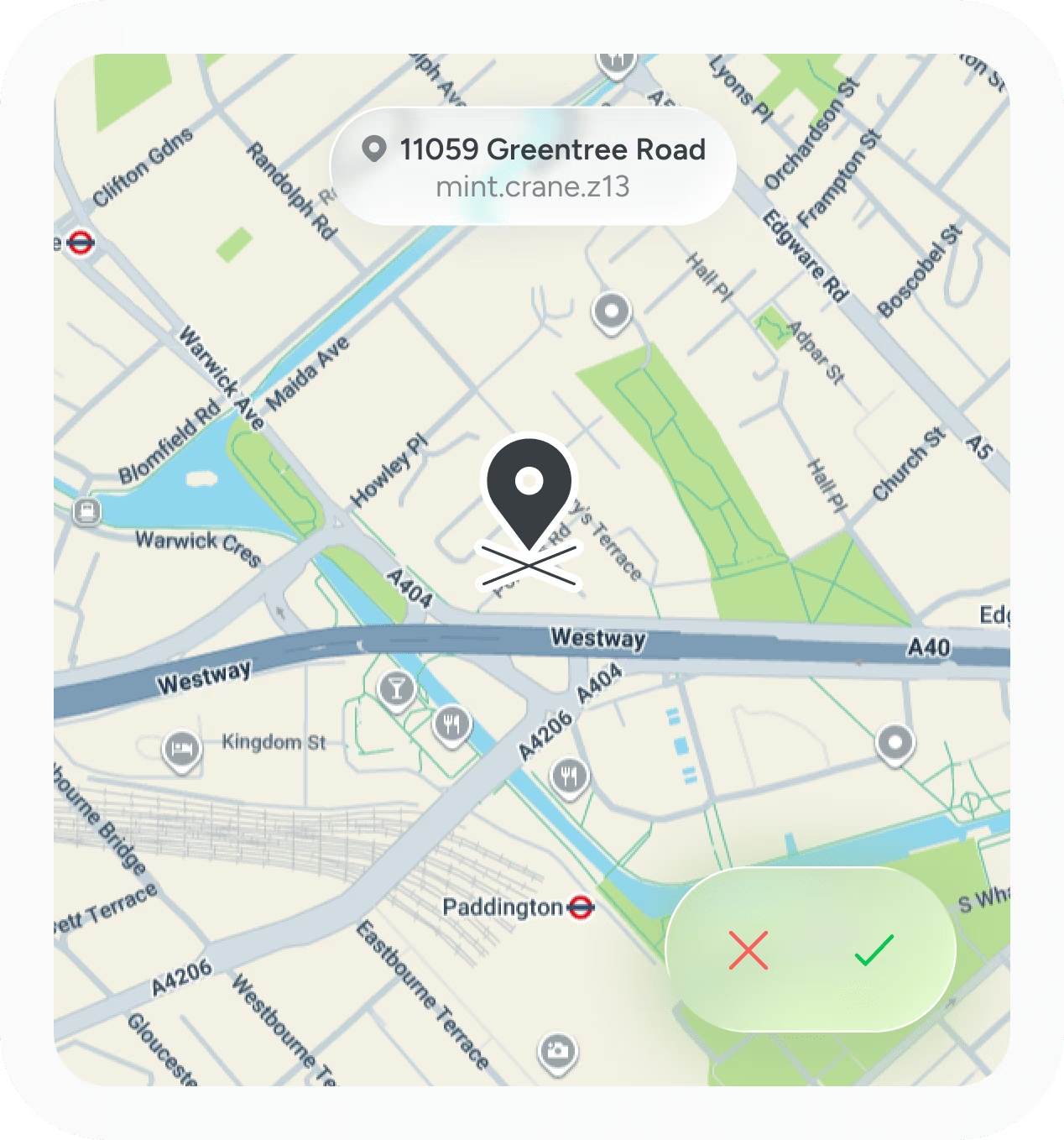
The simplest way to create a pin is directly from the map.
Open the map view and press and hold on the location where you would like to place the pin. After a moment a new pin will appear, allowing you to add a name, notes, tags and any additional information you want to attach to that place.
This is often the fastest way to capture a location when you already know exactly where it is.
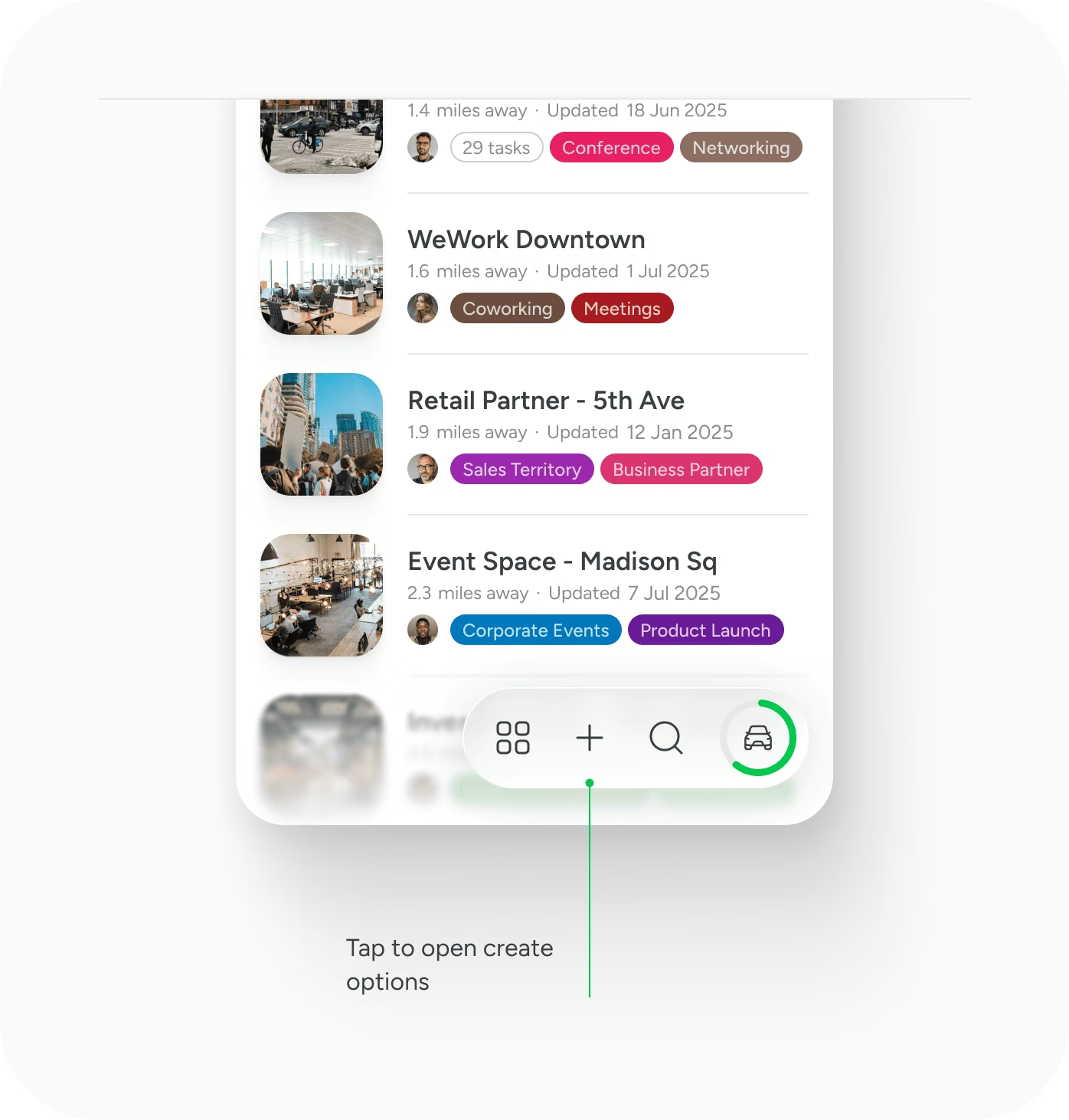
Pins can also be created from the main create menu.
Tap the plus button in the main menu and choose “Drop a pin”. From there you can select the exact location on the map and add any details you want to store with that place.
This approach can be useful when you are planning places in advance rather than marking somewhere you are currently viewing.
If you already know the name or address of a place, you can create a pin directly from search.
Search for the location and then tap the plus icon beside the result. This will create a new pin at that location and allow you to add additional information.
This method is particularly useful when mapping places in a different city or planning locations before you visit them.
If location sharing is enabled on your device, photos you take can contain the coordinates of where they were captured. Pin Drop can use this information to create pins directly from your photos.
This is a quick way to remember places when you are moving quickly and do not want to interrupt the moment. You can simply take a photo and return to it later, turning that image into a pin on your map.
This also works when mapping past trips. If older photos contain location data, you can use them to recreate the places you visited and build a map of your memories.
More information about enabling location permissions can be found here.
If you already have places saved elsewhere, importing them can be the fastest way to bring your map to life.
Pin Drop supports importing from sources such as:
This allows you to move large collections of locations into Pin Drop quickly so they can be organised and explored on your map.
If you are trying to import data from another source that is not currently supported, you can contact the team and they will help you find the best way to bring that information across.
Once you have created your first pin, the rest of your map begins to take shape naturally. Some people start by saving the places they visit most often. Others begin by mapping trips, projects or collections of favourite locations.
However you choose to use Pin Drop, the important step is simply to begin. One pin becomes ten. Ten become hundreds. Over time the map grows into a structured record of the places that matter to you.
Support
Talk to the team on our US & Canada toll-free line or our UK number.
Calls are answered by our AI assistants, Nora (US & Canada) and Ellie (UK) and recorded so the team has the details. You can also email us on hello@pindropapp.com. We aim to get back to you within one working day.
Start here
start-here
Get the apps
get-the-apps
Drop your first pin
drop-your-first-pin
Import your places
import-your-places
Organise with tags
organise-with-tags
Share with your team
accounts-access



